


 9.00 -17.00

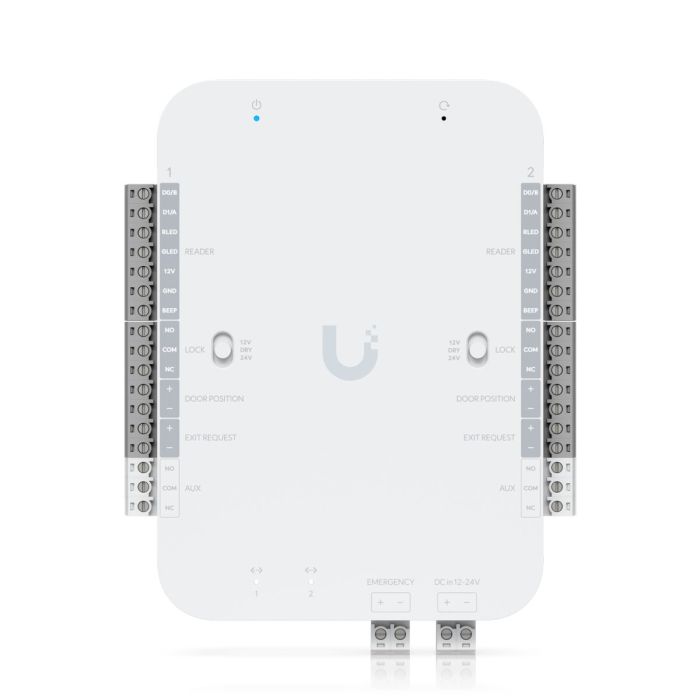
Ubiquiti Retrofit Hub - UA-Retrofit-Hub-2

Ubiquiti UA-Retrofit-Hub-2 DC-powered access control hub for upgrading existing door systems with UniFi Access. Supports 2 doors, Wiegand and UniFi Retrofit Readers, local NFC credentials, schedules and backup power integration.
Accessories and add-ons:
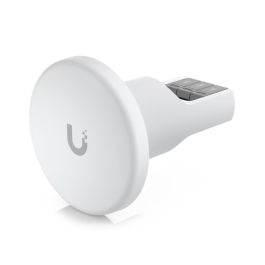
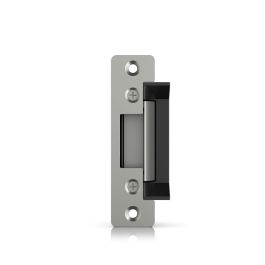
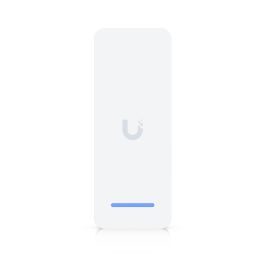
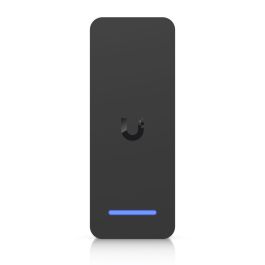
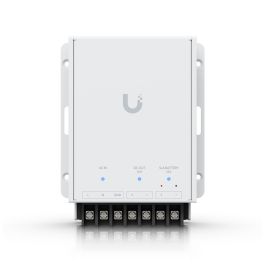

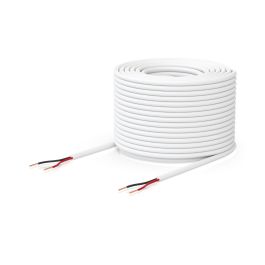
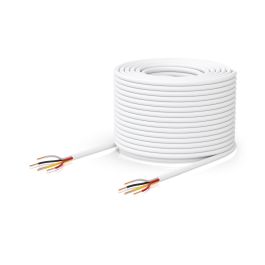
Ubiquiti UA-Retrofit-Hub-2 (Retrofit Hub 2)
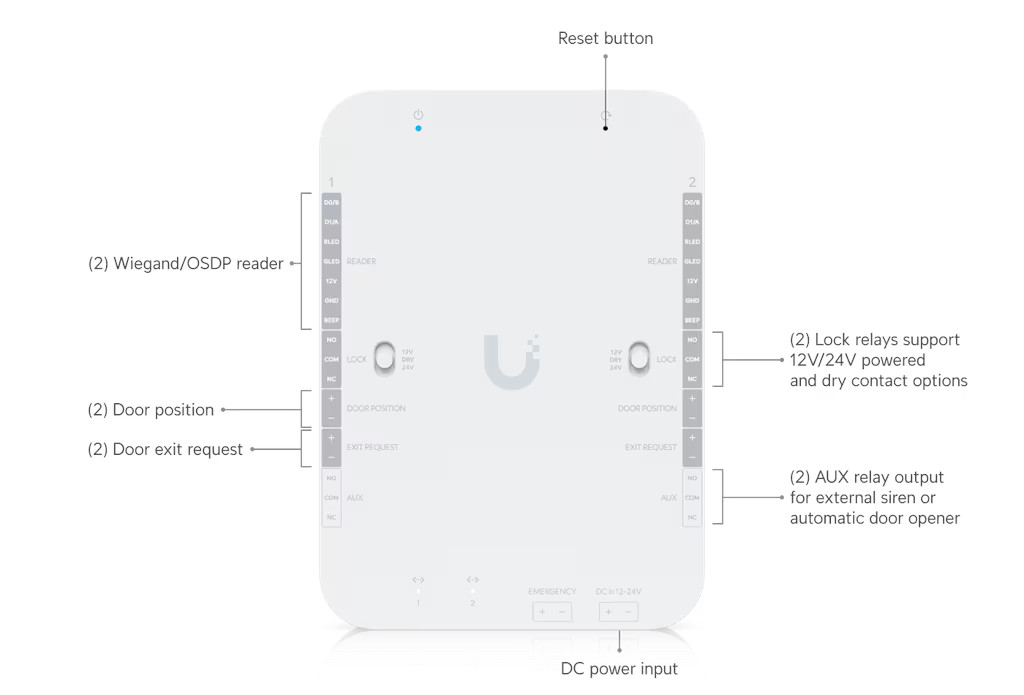
Ubiquiti UA-Retrofit-Hub-2 is a DC-powered access control hub designed to retrofit existing door access installations using UniFi Access. It enables integration with infrastructure based on Wiegand readers and supports UniFi Retrofit Readers. The device provides control for two doors (each door with entry/exit), door position sensor inputs, exit request buttons, and control of an electric lock or strike. Configuration and management are performed through the UniFi Access application running on a UniFi OS controller.
The Retrofit Reader is automatically discovered and paired by the Retrofit Hub in the UniFi Access application once it is physically connected and powered. NFC credentials are stored locally on the Retrofit Hub. After synchronization, users can continue unlocking doors even if the console is offline or the network connection is lost. The Retrofit Hub supports unlock schedules and temporary unlock. Time periods can be defined during which doors remain automatically unlocked (for example, during business hours) without user interaction, and doors can also be temporarily unlocked on demand for a short duration. Retrofit Hub firmware version 1.4.7.0 or later is required. The UniFi Retrofit Hub supports backup power, allowing a 12 V SLA battery to be connected via the Retrofit PSU 12V to maintain operation during power outages.
Main features
- Support for 2 doors (entry/exit; configuration for two independent access points).
- Compatibility with Wiegand readers and support for the UA-Retrofit-Reader (UniFi Retrofit Reader).
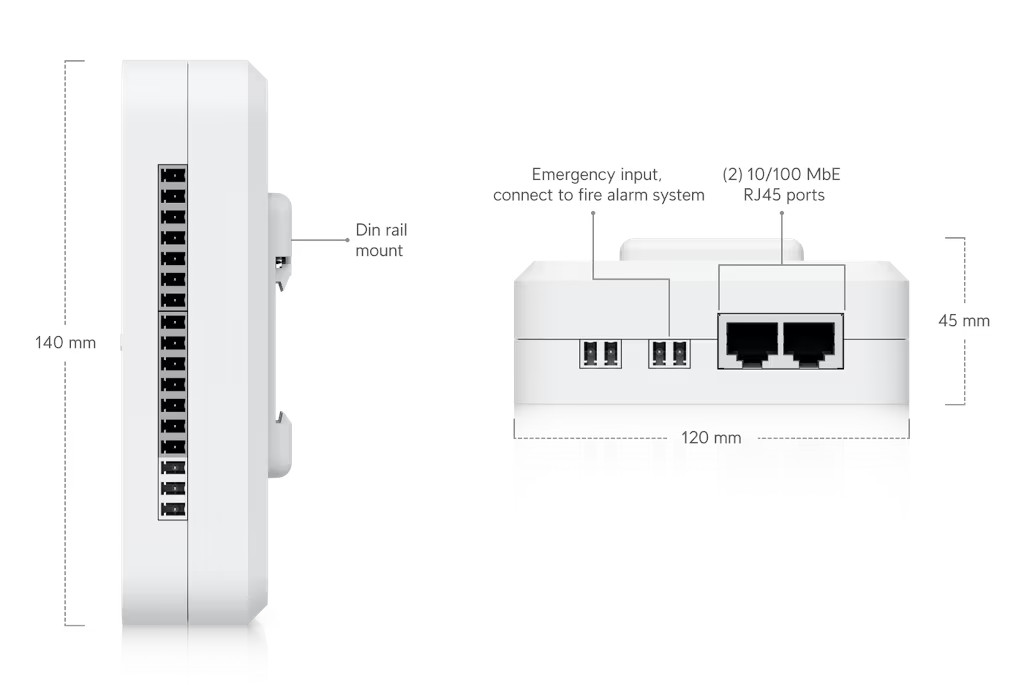
- Door interfaces: door position sensor (DPS) inputs, request-to-exit (REX) inputs, and an emergency input.
- Relay outputs: lock output and AUX output (NO/NC contacts).
- DC power input 12–24 V; maximum power consumption 50 W (no PoE support).
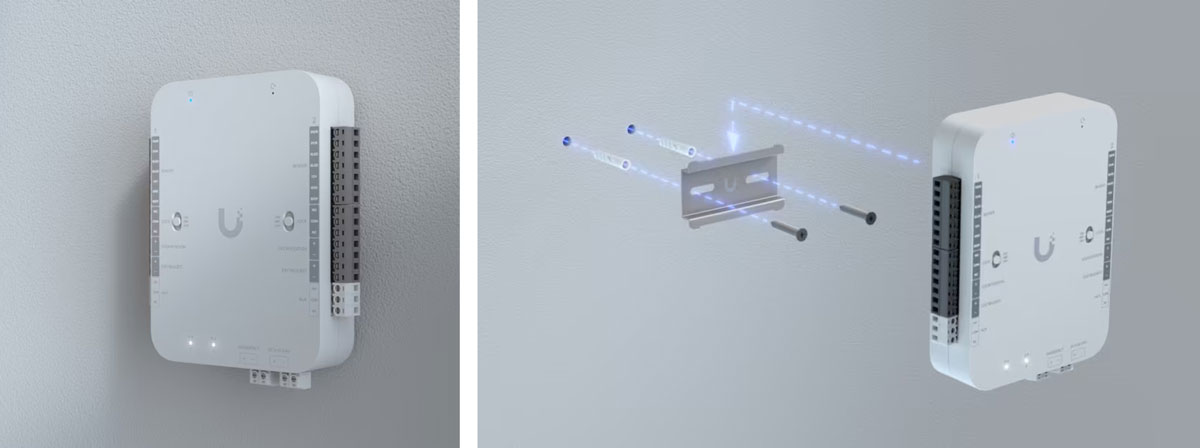
- DIN rail mounting (mounting bracket included); indoor use only.
Technical specifications
| Model | UA-Retrofit-Hub-2 |
| Management platform | UniFi Access (UniFi OS) |
| Supported doors | 2 |
| Maximum number of users | 10,000 |
| NDAA compliance | Yes |
Interfaces
| Ethernet ports | 2 × 10/100 Mb/s (RJ45) |
| Reader inputs | 2 × terminal (Wiegand or UA-Retrofit-Reader) |
| Door inputs | 2 × door position sensor, 2 × exit request button |
| Emergency input | 1 × emergency input |
| Relay outputs |
2 × lock output (NO/NC, max. 30 V DC 1 A) and 2 × AUX output (NO/NC, max. 30 V DC 1 A). Selectable output mode: 12V / Dry / 24V. Lock power supplied from hub: 12 V (1 A) or 24 V (0.5 A). |
| LED indicator | 1 × dual-color status LED (white/blue) |
| Buttons | 1 × reset, 1 × output mode selector (12V/Dry/24V) |
Physical specifications
| Dimensions | 140 × 120 × 45 mm |
| Weight | 420 g |
| Enclosure material | Polycarbonate |
| Mounting | 35 mm DIN rail (mounting bracket included) |
| Application | Indoor use |
| Operating temperature | -10°C to 40°C |
| Operating humidity | 5% – 90% (non-condensing) |
| Certifications | CE, FCC, IC |
Power
| Input power | 12–24 V DC |
| Maximum power consumption | 50 W |
| Backup power | Support for a 12 V SLA battery via the dedicated UACC-Retrofit-PSU-12V power supply |
UniFi Retrofit Hub – Frequently Asked Questions (FAQ)
Yes. NFC credentials are stored locally on the Retrofit Hub. Once synced, users can continue unlocking doors even if the console is offline or the network connection is lost.
No. Reader 1 controls Door 1, and Reader 2 controls Door 2 independently.
No. The Retrofit Hub supports only UniFi Retrofit Readers or third-party Wiegand readers.
Yes. A single NFC card can be used across multiple Retrofit Hubs when paired with UniFi Retrofit Readers or third-party Wiegand readers configured with the same format.
Yes. The Retrofit Reader is automatically discovered and paired by the Retrofit Hub in the UniFi Access application once it is physically connected and powered.
Yes. The Retrofit Hub supports unlock schedules and temporary unlock. You can define times when a door automatically remains unlocked, such as during business hours, without requiring user interaction, or temporarily unlock doors on demand for a short duration.
Please ensure the Retrofit Hub operates on version 1.4.7.0 or later.
Yes. Admins can remotely unlock doors connected to the Retrofit Hub in the UniFi Access application.
Remote unlocking from the UniFi Identity application will be available in a future firmware update.
To monitor door activity with a UniFi Protect camera, navigate to:
Devices > Hubs > select UniFi Retrofit Hub > Overview > Locations > select a door > Paired Devices.
Yes. You can daisy-chain up to two UniFi Retrofit Readers per door. To add a second reader after the first has been adopted, open the UniFi Access application and run Discover Reader to complete detection and adoption.
- Go to Devices and select UA Retrofit Hub 2.
- Open Settings.
- Navigate to Terminal Manager.
- Select Reader, then choose Retrofit Reader.
- Run Discover Reader to detect and adopt the second reader.
Please note that daisy-chaining is only available for UniFi Retrofit Readers. Wiegand readers are not supported in this mode.
No. Third-party support is limited to Wiegand readers.
Yes. The UniFi Retrofit Hub supports backup power. You can attach a 12V SLA backup battery using the Retrofit PSU 12V to keep the hub running during power outages.
If the card format is changed in the Access application or on a third-party Wiegand platform, all NFC cards must be re-registered.
A mismatch between the reader and card format will prevent the cards from being recognized, resulting in door unlock failures.
| Manufacturer SKU | UA-Retrofit-Hub-2 |
|---|---|
| Manufacturer | Ubiquiti |
| GPSR contact | Ubiquiti International Holding B.V. Ekkersrijt 3102, 5692 CC Son en Breugel support@ui.com |

-
 Ubiquiti Retrofit Reader - UA-Retrofit-Reader-B€163.57 €132.98
 -
 Ubiquiti Electric Lock - UACC-Lock-Strike-Secure-15mm€88.42 €71.89
 -
 Ubiquiti Access Rescue KeySwitch (UA-Rescue)€86.73 €70.51
 -
 Ubiquiti Retrofit PSU 12V - UACC-Retrofit-PSU-12V€64.77 €52.66
 -
 UI Care warranty extension for UA-Retrofit-Hub-2€64.77 €52.66
 -
 Ubiquiti Door Lock Relay Cable - UACC-Cable-DoorLockRelay-1P€137.22 €111.56
 -
 Ubiquiti Door Lock Relay Cable - UACC-Cable-DoorLockRelay-2P€170.16 €138.34
 -
 Ubiquiti Retrofit Reader - UA-Retrofit-Reader-W€163.57 €132.98
Please complete your information below to login.
Sign In
Create New Account